Your stream.
Cut into
Shorts.
Find highlights in your recording, add subtitles, and arrange your gameplay and camera for a vertical screen.
YouTube, Twitch, Kick, or your own video file.
01 / HIGHLIGHTS
Start with the
parts worth watching.
Clipaxt analyzes your recording and suggests moments to turn into clips. Watch the results and choose what belongs on your channel.
AI identifies potential highlights from the recording.
Preview the generated clips before sharing them.
Download the clips you want from your library.
Suggestions are a starting point. You decide what makes a good clip.
02 / SUBTITLES
Your words.
Your subtitle style.
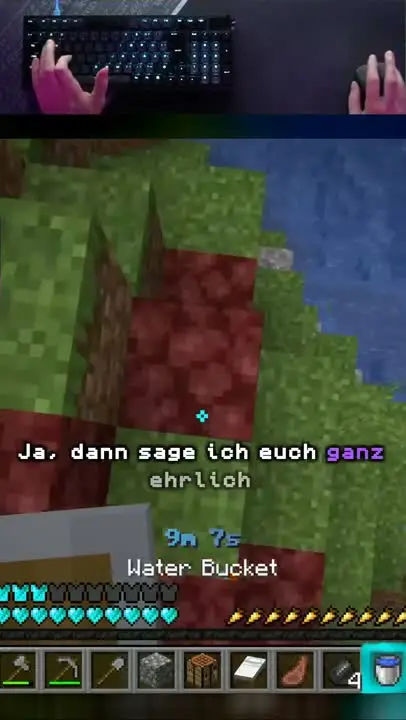
Generate subtitles from the audio, with words timed to the speaker. Choose the font, size, colors, and position, then save the style for your channel.
Subtitles are burned into the exported video, so they stay visible wherever you post it.
TRY A SUBTITLE STYLE
wait, watch this.
Word highlight subtitle previewStyle illustration. More font, color, and timing controls in the editor.
03 / VERTICAL LAYOUT
Give your camera
its own space.
Set the gameplay crop and camera placement separately. Save layouts for different scenes, so your face-cam doesn’t have to compete with the game for the same frame.
- Adjust the gameplay crop and zoom
- Position and size the camera area
- Reuse saved layouts for your channel
 Camera
 Subtitles
04 / EXPORT & PUBLISH
From your library
to your audience.
Download a finished clip, or connect a publishing account. Choose the destination, check the title and visibility, and publish when you’re ready.
- Download the video
- Save the MP4 and upload it yourself to Shorts, Reels, or TikTok.
- Publish from Clipaxt
- Connect YouTube or TikTok to send clips to your account. Available options depend on the connected account.
- Plan ahead
- Use the calendar to schedule clips. Optional automation can pick up new VODs from connected Twitch or Kick channels.
TRY IT WITH YOUR RECORDING